Want to know how to share live location so a friend, partner or family member can see where you are?
Perhaps someone is waiting for you to arrive. You might be heading home after work, meeting friends in an unfamiliar place or travelling between an airport and your accommodation.
The right option depends on what you want the other person to see: your current position, your progress towards a destination or your location during a safety session.
This guide explains how to share live location on iPhone and Android using Apple Find My, Google Maps, WhatsApp and NevaSolo. It also covers sharing between different phones, sending a temporary link and choosing when sharing ends.
Quick answer: how to share live location
Choose the option that matches your situation:
| What you want to do | Option to use | What the recipient needs |
|---|---|---|
| Share with another iPhone user | Apple Find My | A compatible Apple setup; Live Location requires supported iPhones |
| Share between iPhone and Android | Google Maps Location Sharing | Access to the sharing invitation or link |
| Share within a conversation | WhatsApp Live Location | WhatsApp and access to that conversation |
| Share your destination and arrival time while navigating | Google Maps trip progress | Access to the journey you share |
| Let someone follow a journey through their browser | NevaSolo Share Trip | Your temporary trip link; no NevaSolo account or app required |
For a one-off meeting point, a location pin may be enough. For someone who needs to follow your movement, choose live location or journey sharing.
Someone waiting for you? Let them follow your trip.
With NevaSolo Share Trip, you start the journey and send a temporary link. The recipient opens it in their browser to see your progress.
Download NevaSolo for iPhone · Download NevaSolo for Android
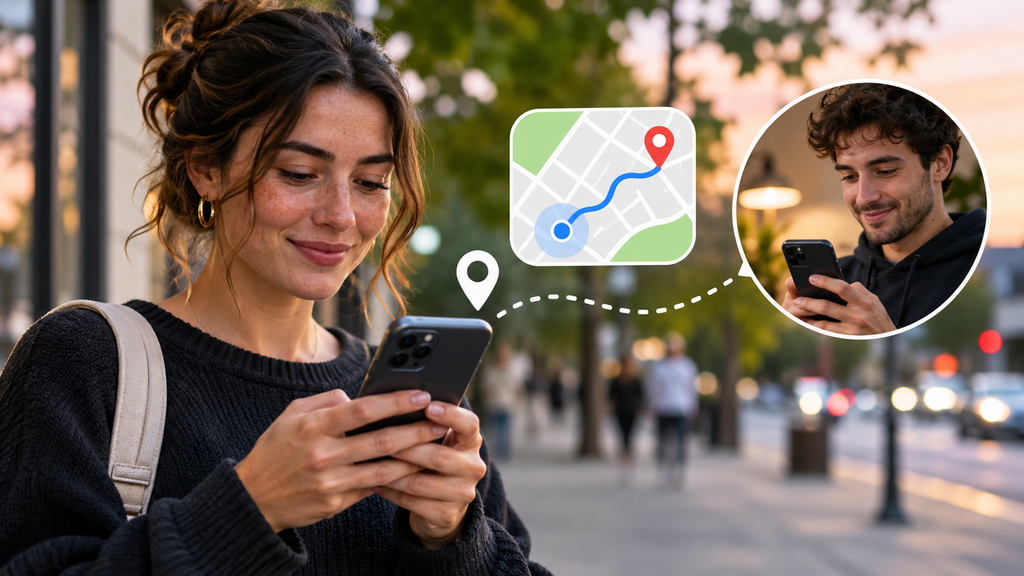
Before you start: a location pin, live location or journey?
These options answer different questions.
A location pin answers “Where is this place?” It marks a fixed position, such as a café entrance or meeting point.
Live location answers “Where are you now?” It updates during the sharing period, subject to your phone’s connection and permissions.
Journey sharing answers “How is your trip progressing?” Depending on the service, it can include a destination and estimated arrival time.
Think about what the recipient will actually do with the information. Someone collecting you may need your arrival time. A friend supporting you during a late walk may need an agreed check-in plan as well.
1. How to share live location on iPhone using Find My
Useful when: you and the other person use compatible Apple devices.
Find My gives iPhone users a built-in way to share location with people they choose.
- Open Find My.
- Select Me and turn on Share My Location.
- Open People.
- Tap Add (+), then Share My Location.
- Choose the recipient and confirm.
- Select the sharing duration shown on your iPhone.
Available durations can include one hour, until the end of the day, indefinitely or a custom period, depending on your software version.
How to stop sharing in Find My
Open Find My → People, select the person, then choose Stop Sharing My Location.
Apple’s Live Location feature requires both people to have supported iPhones. If you’re sharing with someone on Android, consider the cross-platform options below.
For current instructions, see Apple’s official guide to sharing your location on iPhone.
2. How to share live location on Android using Google Maps
Useful when: you want general location sharing across different phones.
Google Maps Location Sharing works on Android and iPhone. The person sending their location signs into a Google account.
- Open Google Maps.
- Tap your profile picture or initial.
- Select Location sharing → New share.
- Choose the sharing duration.
- Select a person or use the available link-sharing option.
- Send the invitation or link.
To stop, return to Location sharing, select the recipient and tap Stop.
Sharing with someone who doesn’t have a Google account
Google Maps supports location-sharing links. Its help centre states that someone with the link can view your real-time location for up to 24 hours.
Send the link privately and check who can access the conversation containing it.
For device-specific instructions, use Google’s Android location-sharing guide.
3. How to share live location on WhatsApp
Useful when: you’re already talking to the recipient in WhatsApp.
- Open the individual or group conversation.
- Tap the attachment button or +, depending on your phone.
- Choose Location → Share live location.
- Select how long to share.
- Send the location message.
To finish early, return to the conversation and select Stop sharing.
Choose the correct location option
Send your current location sends a fixed position. Share live location provides updates during the selected period.
In a group conversation, consider everyone who can see your message. A private conversation is usually a better fit when only one person needs your journey information.
WhatsApp says recipients may still see a static thumbnail and your last updated location after live sharing stops.
See the official WhatsApp live-location instructions for the current controls.
4. How to share your journey and ETA with Google Maps
Useful when: you’re navigating and someone wants to know when you’ll arrive.
Google Maps can share your destination, current location and estimated arrival time during supported driving, walking or cycling navigation.
- Enter your destination in Google Maps.
- Start navigation.
- Swipe up on the information card.
- Select Share trip progress.
- Choose the recipient and tap Share.
Sharing ends when you reach the destination or stop navigation. You can also use Stop sharing on the information card.
For example, if a friend is meeting you outside a venue, journey progress gives them more useful context than a location pin sent earlier in the journey.
Google explains this under “Share your estimated time of arrival” in its location and trip-sharing guide.
Set up sharing before driving; pull over safely if you need to change it.
5. How to share live location with a link using NevaSolo
Useful when: someone needs to follow one journey, and you want to send them a browser link.
NevaSolo Share Trip lets you create a temporary journey link. You use the NevaSolo app to start the trip; the recipient can view it without installing the app or creating an account.
Start your first Share Trip
- Download NevaSolo Personal and complete your account setup.
- Open Share Trip and follow the prompts to start your journey.
- Send the generated link privately to your intended recipient.
- Ask them to open it and check that they can see the active journey.
- When you’re finished, confirm that the trip has ended.
Access is temporary and expires with the session or shortly after arrival. You can also stop sharing by ending the trip.
Give the recipient a reason to open it
A little context makes a journey link more useful.
You could write:
I’m on my way. Open this NevaSolo trip link to follow my progress. I’ll message you if our meeting point changes.
That message explains why you’ve shared and what the recipient should expect.
For an airport pickup, agree on the terminal or collection point separately. When meeting friends, confirm the venue entrance. A live map helps with progress; those small practical details help everyone meet in the right place.
Where Share Trip fits within NevaSolo
Share Trip is one part of the NevaSolo Personal safety app. You can also choose Safety Mode for trusted-contact awareness, Drive Home for a journey home, or Emergency Mode when urgent attention is needed.
That gives you a reason to keep the app ready for different situations, while choosing the appropriate mode each time.
Try NevaSolo on your next journey.
Download the app, start Share Trip and send your link to someone expecting you. Ask them to open it before you set off so you both know how it works.
How to share location from iPhone to Android
You can share location between iPhone and Android using Google Maps or WhatsApp. NevaSolo Share Trip also provides a browser-based way for the recipient to follow a journey.
Choose based on the recipient’s situation:
- They already use Google Maps: use Location Sharing or trip progress.
- You’re already in a WhatsApp conversation: share your live location there.
- They want to open a journey link: start Share Trip in NevaSolo and send it privately.
The same approach works when the sender has Android and the recipient has an iPhone.
Before choosing a new app, ask what the recipient needs. “Can you see when I’m nearly there?” is a journey-sharing task. “Can we agree on a check-in while I’m out?” needs a conversation about expectations as well.
Choosing a live location sharing app for everyday use
The best location sharing app for you should fit the way you and your contacts communicate.
Consider these questions:
Can the recipient open it easily? An existing messaging conversation may be simplest for one person, while another may prefer a browser link.
Can you choose when sharing ends? Pick a duration or journey that matches the activity.
Does the information match the purpose? An arrival time, a location pin and an active safety session serve different needs.
Will you use it again? A useful first trip is a good test. Check that you can start sharing, explain it to the recipient and finish the session confidently.
If you want to organise sharing around particular activities, explore NevaSolo’s guide to temporary location sharing.
Want someone you trust to stay aware? Set up Safety Mode
For a walk home, a late shift or a meeting with someone new, you may want a person from your support network to remain aware of where you are.
NevaSolo Safety Mode shares your live location and session status with selected trusted contacts during an active session.
Choose one trusted contact to start
Choose someone you already know, who is willing to participate and understands your plans.
Ask that person to set up their NevaSolo account, complete the trusted-contact connection and try a short Safety Mode session with you.
Before a real outing, agree on:
- When you expect to finish.
- When you’ll send a check-in message.
- Whether they will be available.
- What they should do if they cannot reach you.
Agree on check-ins and follow-up with your contact before you leave. Safety Mode provides location and session awareness; your contact needs to take any agreed follow-up action themselves.
A trip viewer and a trusted contact have different roles
A Share Trip recipient opens a temporary link to follow a journey. A trusted contact uses a NevaSolo account to participate in supported safety sessions.
For example, someone waiting at a café may only need your arrival progress. A close friend supporting you during a first date needs your plans and an agreed way to check in.
Use the first-date safety plan to organise that information before you leave.
Already have NevaSolo? Invite one trusted person and try a Safety Mode session together.
Share your drive home with someone who cares
For regular journeys home, NevaSolo Drive Home lets selected trusted contacts follow your trip.
Save your home destination, choose your contacts and start the session before you drive. Supported updates include journey progress, ETA and arrival information.
This can fit a simple routine: finish work, start Drive Home, put the phone away and make the journey.
If you want someone to follow up when plans change, agree on that separately. They should know whether they’re simply checking your arrival time or expecting a message from you.
If you need urgent attention from your network, NevaSolo Emergency Mode supports alerts, location sharing and emergency evidence capture where device permissions and connectivity allow.
For immediate danger or urgent assistance, contact local emergency services.
How to share live location with control over your privacy
A good sharing setup makes three things clear: who can see your location, why you’re sharing it and when access should end.
Choose the recipient and sharing period
Check the contact or conversation before sending. Keep live journey links within the intended private conversation and review older sharing arrangements periodically.
The Australian eSafety Commissioner’s location-sharing advice explains how settings and unintended disclosures can affect who sees your movements.
Review sharing on your iPhone
On supported iPhones, open Settings → Privacy & Security → Safety Check → Manage Sharing & Access to review supported sharing arrangements.
Apple’s Safety Check guide explains its controls and limitations. Also check sharing settings inside each app you use.
Understand background location during an active session
Live location may need to update while your screen is locked or you’re using another app.
NevaSolo’s current app listing explains that location can be collected and transmitted in the background during active trips and safety sessions. Review the sharing settings for any optional location features you enable.
Use the session controls to end sharing, and review permissions and privacy settings in the app. See the NevaSolo privacy policy for further information about account data and sharing.
Troubleshooting: why isn’t live location updating?
If someone sees an old position, check the session and connection before assuming the map is current.
| What you notice | What to check |
|---|---|
| Sharing never starts | Confirm the app has the required location permission and you completed setup |
| Updates pause | Check mobile data or Wi-Fi, location access and the app’s background/battery settings |
| A trip link no longer works | Confirm the trip is active and the complete current link was sent |
| The wrong person can see the session | Review the recipient or group conversation and end the incorrect share |
| The recipient expects an alert but sees only a map | Confirm which feature you’re using and what it is designed to send |
| The location looks out of date | Check the displayed update time and contact the person directly if needed |
For NevaSolo issues, visit NevaSolo support with your phone model, app version and a description of what happened.
A map helps you share information; a direct call or message is useful when you need to clarify a delay or changed plan.
Frequently asked questions
How do I share my location with someone?
Decide whether they need a fixed location or live updates. Send a pin for a meeting point, use timed location sharing for ongoing movement, or choose a journey-sharing feature for a particular trip.
Can I share live location from iPhone to Android?
Yes. Google Maps and WhatsApp support sharing across both platforms. NevaSolo Share Trip lets the recipient open a temporary journey link in their browser.
Can someone follow my trip without downloading NevaSolo?
Yes. Share Trip recipients can use the link without installing NevaSolo or creating an account. The person starting the journey uses the app.
Does my trusted contact need a NevaSolo account?
Yes, for Safety Mode and supported trusted-contact participation. Arrange their setup before the outing so you can test the connection together.
How do I share live location temporarily?
Choose a timed sharing option or start a journey-based share. Review when access is due to end and confirm the session has finished once you’ve completed the activity.
Is NevaSolo free to download?
NevaSolo is free to download. Optional Pro and Family subscriptions offer additional usage limits and family options. Check the current inclusions and prices in the app before purchasing.
Does closing the app stop location sharing?
Use the feature’s stop-sharing or end-session control. Active sharing may continue in the background, so closing the screen or switching apps should not be your method of ending a session.
What happens if my phone loses internet access?
Updates can pause or arrive late. The recipient may see a previous location. For journeys with limited reception, agree on a separate check-in plan before leaving.
Will someone automatically respond if I need help?
Response depends on the people receiving your information and their availability. Discuss expectations with your trusted contacts. For urgent assistance, contact local emergency services.
Get set up before your next journey
Start with a trip you already plan to make: meeting a friend, travelling to an appointment or heading home.
Download NevaSolo, try Share Trip and send your journey link privately to someone expecting you.
For outings where you want trusted-contact awareness, invite someone you already know and try Safety Mode together before you need it.
Choose your phone and get started:
NevaSolo supports communication and safety awareness. Location updates and alerts depend on permissions, connectivity and supported services. Contact local emergency services when immediate help is required.
0 Comments